
You just won a 1v4 clutch, and your hands are still shaking. So you hit the clip hotkey, drag the file into your squad’s channel, and wait. Instead of a highlight, Discord throws an error at you.
Sound familiar? Almost every gamer hits this wall at some point. Fortunately, the fix rarely takes more than a minute or two.
To begin with, you need to know the Discord file size limits for each plan. After that, a few simple habits will get almost any clip into chat. This guide breaks down the current caps and explains why gaming footage grows so large. It also shows how players share clips without ruining quality.
What Are the Current Discord File Size Limits?
Discord caps uploads per file, and your plan sets the ceiling. Here’s where each tier stands as of November 2026:
| Plan | Max upload per file |
| Free | 20 MB |
| Nitro Basic | 50 MB |
| Nitro | 500 MB |
Free players got good news on August 13, 2026. On that day, Discord doubled the free limit from 10 MB to 20 MB across all platforms. Mobile changed too, since the app now checks file size before compression, just like desktop.
Still, 20 MB disappears fast with gameplay footage. A raw 30-second highlight at high settings often blows right past it.
That’s why many players keep a few trusted tools on hand. An online video compressor for discord lets you pick a target size or quality level. You can then preview the result before you export the final file.
How Server Boosts Raise the Discord Upload Limit
Server boosts add another layer to Discord file size limits. When members boost a server, everyone inside it shares the perks, including bigger uploads.
Level 1 takes two boosts, but it doesn’t raise the cap. At seven boosts, Level 2 lifts the limit to 50 MB for every member. Once a server reaches 14 boosts, Level 3 pushes uploads to 100 MB.
However, those perks only work inside that server. Your DMs and other servers still follow your personal plan. So if your squad trades clips every night, a boosted home server makes life much easier.
Why Gaming Clips Hit the Upload Cap So Fast
Three settings decide how big a clip gets: resolution, frame rate, and bitrate. Bitrate matters most because it sets how much data each second of video holds. Capture tools often record at high bitrates to keep fast motion sharp.
Suppose your recorder saves footage at 40 Mbps. In that case, a 30-second clip weighs roughly 150 MB. That’s more than seven times the free limit.
Meanwhile, many players record at 1440p or even 4K with high frame rates. Those settings look gorgeous, but they inflate file sizes even further.
Audio adds weight too, especially when you capture game sound and voice on separate tracks. In short, your recorder chases quality, while Discord file size limits reward compact files.
How Gamers Share Clips on Discord Without Losing Quality
The trick is simple: cut what you don’t need before you touch quality. Work through these steps in order, and most clips will slide under the cap.
Set Up Your Recorder for Smaller Clips
Small clips start with smart capture settings. Most recorders let you choose how many seconds the replay buffer saves. Set it to 30 or 60 seconds instead of five minutes.
That way, every saved clip starts small and focused. You can also record at a moderate bitrate, around 15 to 20 Mbps for 1080p60. Footage still looks crisp, yet files stay far more manageable.
Trim the Clip to the Highlight
Most clips include dead air before the action kicks in. So cut the walk-up, the loading screen, and the long celebration afterward.
A tight 15-second clip usually tells the story better than a full minute. Besides, friends actually finish short clips, so you get more reactions.
Discord’s own Clips feature can help here as well. While you stream, it saves the last 30 seconds, 60 seconds, or two minutes.
Hit Alt+C, the default shortcut, and then trim the moment in Discord’s editor. Keep in mind that Discord’s help page still lists Clips as a Windows-only early-access feature.
Match Resolution and Bitrate to the Target Size
Next, do some quick math before you export. Divide your target size in megabits by the clip length in seconds. For instance, 20 MB equals 160 megabits, so a 30-second clip allows about 5 Mbps.
That budget suits 720p at 60 fps, or 1080p at 30 fps for slower games. Leave a little headroom, though, because audio usually takes around 128 kbps.
For longer clips, drop the resolution first and protect the frame rate. After all, fast shooters look far smoother at 60 fps.
Choose a Video Format Discord Plays Inline
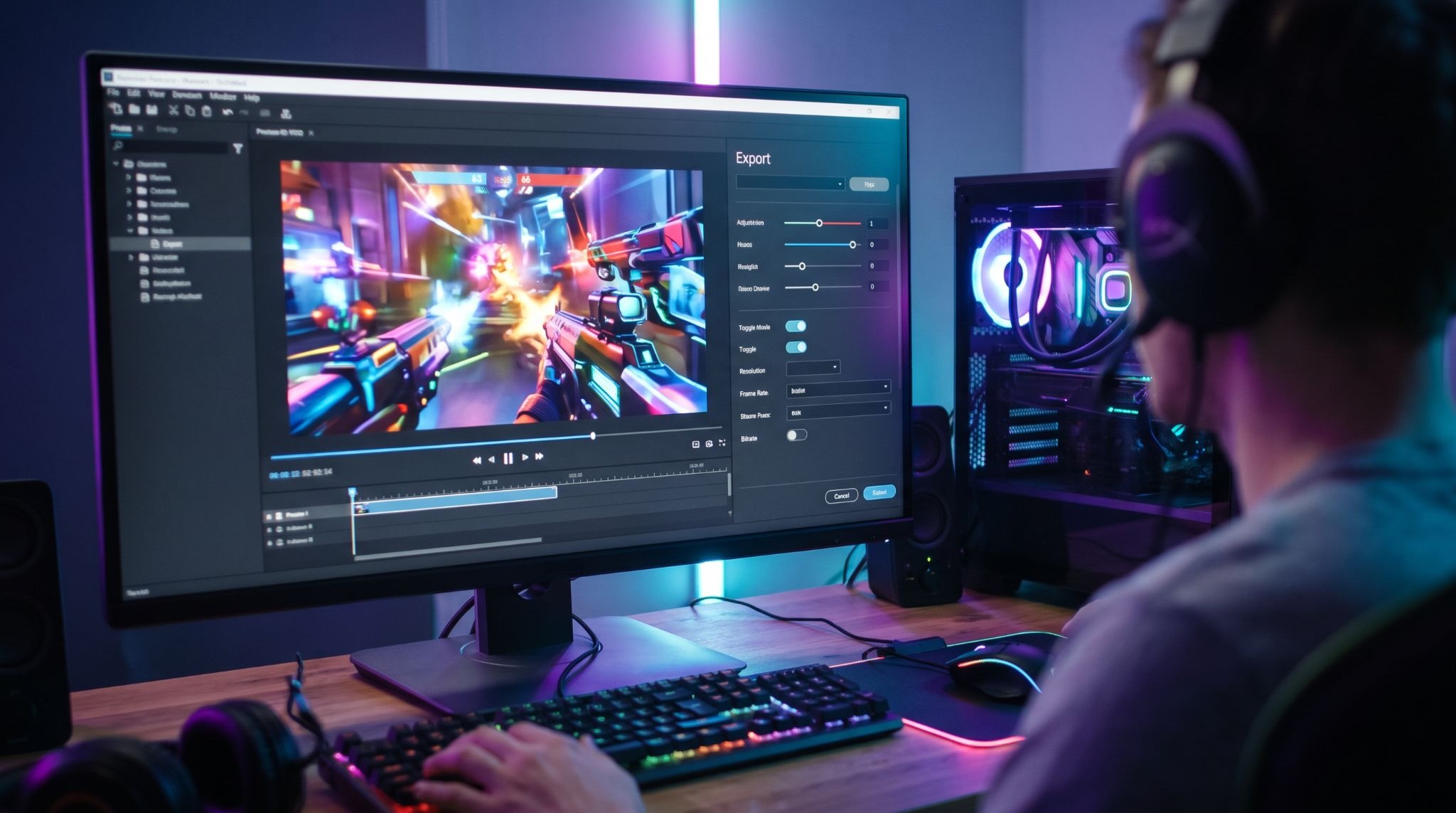
Format matters as much as size. Discord previews MP4 files right in the chat, so friends can watch without downloading anything. Stick with H.264 video and AAC audio for the widest device support.
Newer codecs like AV1 and HEVC shrink files further, but playback support varies across devices. Similarly, an MKV file may appear as a plain download link, and that extra click kills the hype. A quick remux turns MKV into MP4 without re-encoding, so quality stays identical.
Compress the Video Before You Upload
Once you trim and resize, compression handles the final squeeze. A good compressor re-encodes footage more efficiently, so you keep detail while dropping megabytes.
Browser tools work well for quick jobs, while desktop editors suit players who want full control. Either way, preview the result before you post it. Watch fast motion and smoke effects closely, since blocky artifacts show up there first.
Share Clips From a Phone or Console
Many console players move clips to their phone first and then post them on Discord. However, the mobile app now checks the original file size, just as desktop does. So a 25 MB phone clip won’t go through on a free account.
Instead, trim it in your gallery app or on the console before you share. Both PlayStation and Xbox include a basic trim tool in their capture menus.
What to Do When a Clip Is Still Too Big for Discord
Some highlights refuse to shrink, like a full ranked round or a 4K montage. When that happens, try one of these options:
- Split it into parts. Two clean clips under the limit beat one blurry mess.
- Post it in a boosted server. A Level 3 server accepts files up to 100 MB.
- Share a link instead. Upload the video to a hosting site or cloud drive, and then paste the link.
- Weigh Nitro carefully. Its 500 MB cap covers almost any clip, but it suits frequent sharers best.
Whatever you choose, keep the original recording so you can re-export a sharper version later.
Final Thoughts on Sharing Gaming Clips
Discord file size limits feel strict at first, but they rarely stop a prepared player. Free accounts now get 20 MB per file, while Nitro tiers and boosted servers offer far more room.
Even so, the smartest move costs nothing at all. Trim the clip first, and then match your settings to the target size. After that, compress the file and preview it once.
Follow that routine, and your best plays will land in chat within seconds. Your squad gets the highlight, and you get the bragging rights. Now go share that clutch.